Upgrade my Web Hosting (cPanel) plan
Here's how you can upgrade your Web Hosting (cPanel) plan if you need more processing power or physical memory. Upgrading your plan can make your website faster and more resilient when its traffic spikes.
Note: Although upgrades typically take from 10 to 30 minutes, for large sites, allow up to 24 hours. Your sites may experience intermittent downtime until the upgrade is complete.
- Go to your GoDaddy product page.
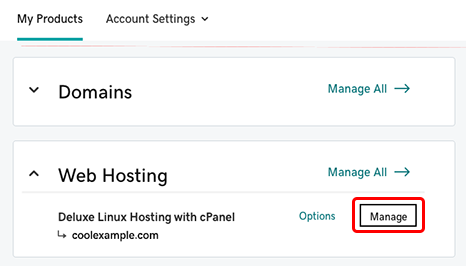
- Under Web Hosting, next to the Web Hosting (cPanel) account you want to use, select Manage.
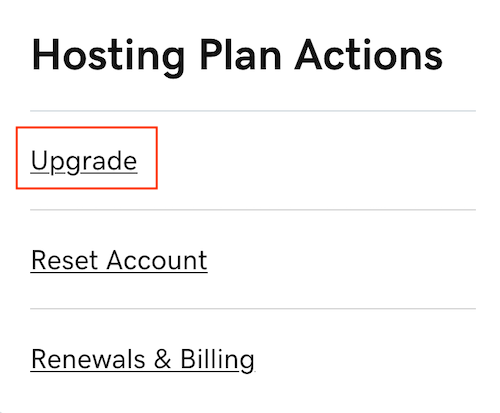
- On the Dashboard tab, select Upgrade in the Hosting Plan Actions section.
- Select Upgrade for the plan level you need.
- Follow the prompts to complete the checkout process.
More info
- If you're upgrading to Web Hosting Plus, your server IP address may change. After the upgrade is complete, we'll email you the new server IP address. If you're using domains in other GoDaddy accounts or with other web providers, you will need to update the A Host records accordingly.
- For info on updating that A Host record, see Edit an A record.
- And just in case you miss the email with the new IP address, follow the steps in What is my website's IP address in my Web Hosting (cPanel) account?.
- See more info on Web Hosting plans (also check out how you can obtain a free domain name with any annual Web Hosting (cPanel) plan from GoDaddy).
- Here's where to learn more about Web Hosting Plus plans.