
WordPress 7.0 ships May 20, 2026. It's the first major release of the year and the start of a restored three-release cadence. The project extended the release past its original April 9 WordCamp Asia target. The extension gave the team room to finalize the architectural work needed for a stable release. The headline shift came on May 8.
That's when the project removed real-time collaboration from the 7.0 milestone entirely and instead rescheduled it for a future release. However, what's in 7.0 is still a substantial step forward overall: visual revisions, new blocks, a provider-agnostic AI client, customizable navigation overlays, a modernized admin, and, ultimately, the Phase 3 (Collaboration) foundations that real-time editing will eventually build on.
Test WordPress 7.0 before you deploy
If you manage client sites, this one matters. Viewport-based block visibility adds a new content control layer. The iframed editor's detection logic has shifted. Pattern editing defaults have changed. The admin gets a new "Modern" color scheme and view transitions.
First, set up a staging environment and run your standard client workflows against the release candidates before rolling it out. Additionally, pay special attention to custom blocks that haven't updated to Block API version 3 (the iframed editor's behavior now depends on the blocks actually inserted in a post), and also any patterns you've built for client sites — because contentOnly mode is applied more broadly than before.
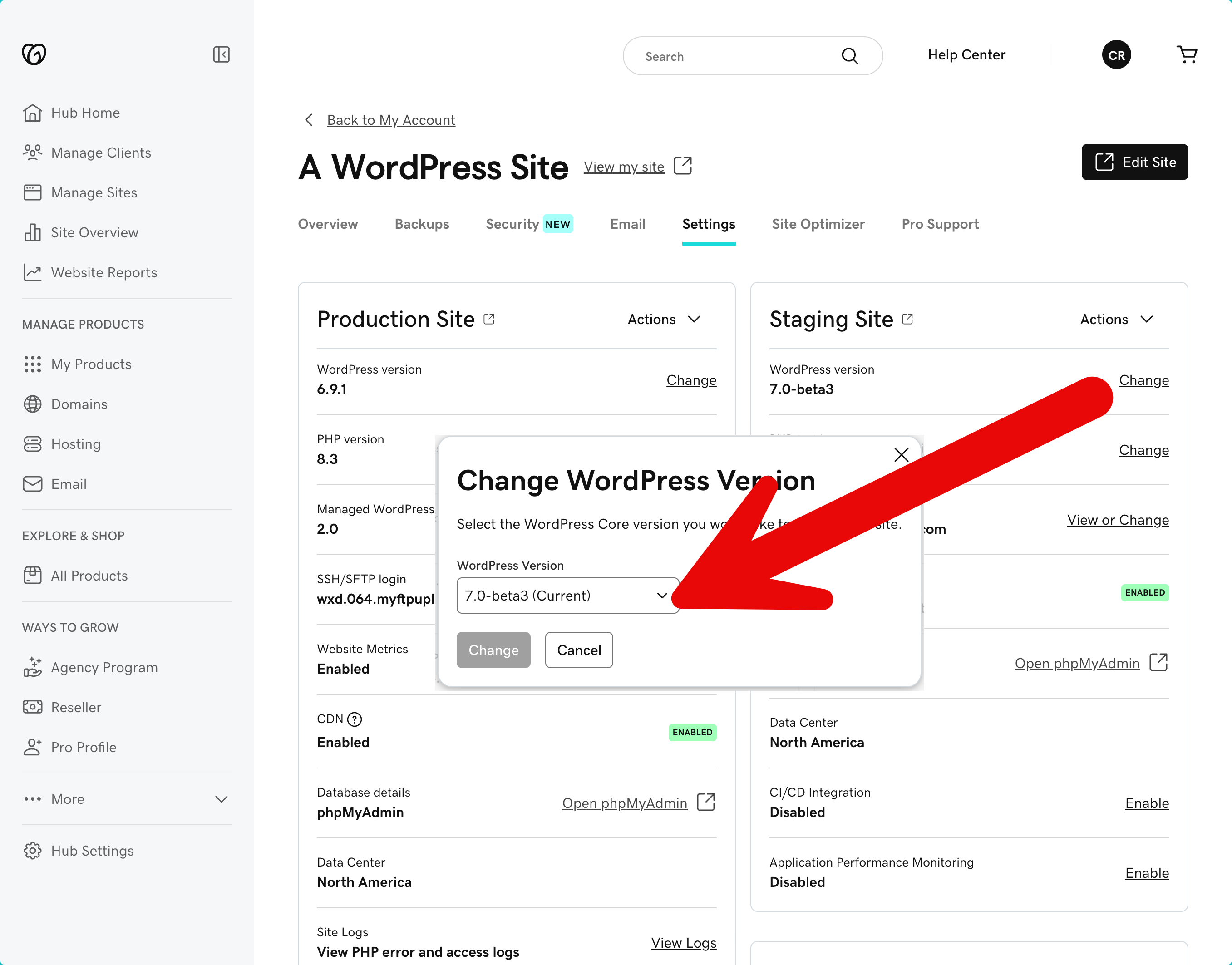
If your agency runs on GoDaddy Managed Hosting for WordPress, for example, you can deploy WordPress 7.0 release candidates directly to your staging site — and best of all, no plugins or local setup needed. From the Hub, open your site's Settings tab and use the WordPress version selector on your staging environment to switch to the latest available RC. Your production site stays untouched while you test.
For other hosting setups, install the WordPress Beta Tester plugin on a staging or local site.
You can also spin up an instant test environment at playground.wordpress.net/release — that build comes pre-loaded with testing plugins and sample content so you can start exercising 7.0 features immediately. The official Help Test WordPress 7.0 post has specific testing scenarios.
What does this update bring to end users?
Notes improvements
WordPress 6.9 introduced Notes — block-level comments that let editorial teams leave contextual feedback directly on content inside the editor. Notes never appear on the frontend. You can reply in threads, resolve conversations, and keep review workflows inside WordPress instead of routing them through email or external tools. The Notes documentation covers setup and permissions.
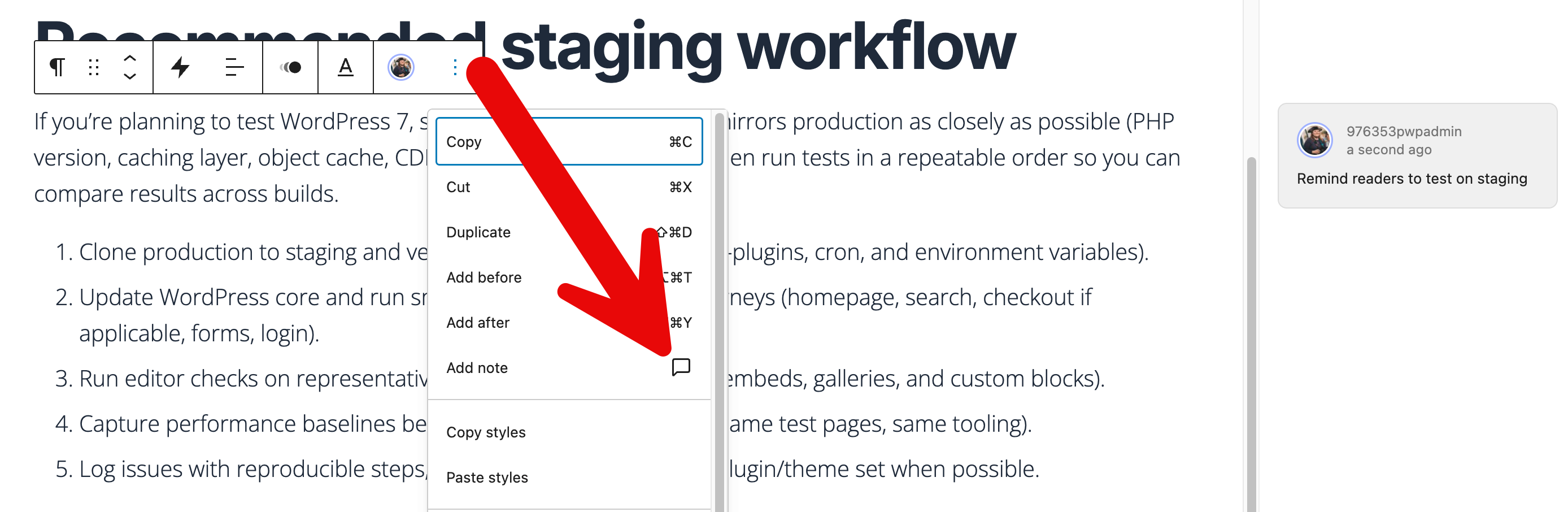
WordPress 7.0 takes Notes from "useful" to "production-ready" for editorial teams. First, data now syncs automatically across sessions. In addition, a new keyboard shortcut, a dedicated dashboard widget, and new in-product notifications keep asynchronous review workflows moving even when collaborators aren't in the editor at the same time. The feature also gains support for multi-block notes, partial text selections, and rich text editing inside the note itself — which means reviewers can now format their feedback (links, emphasis, lists) the same way they format the content under review.
Visual revisions
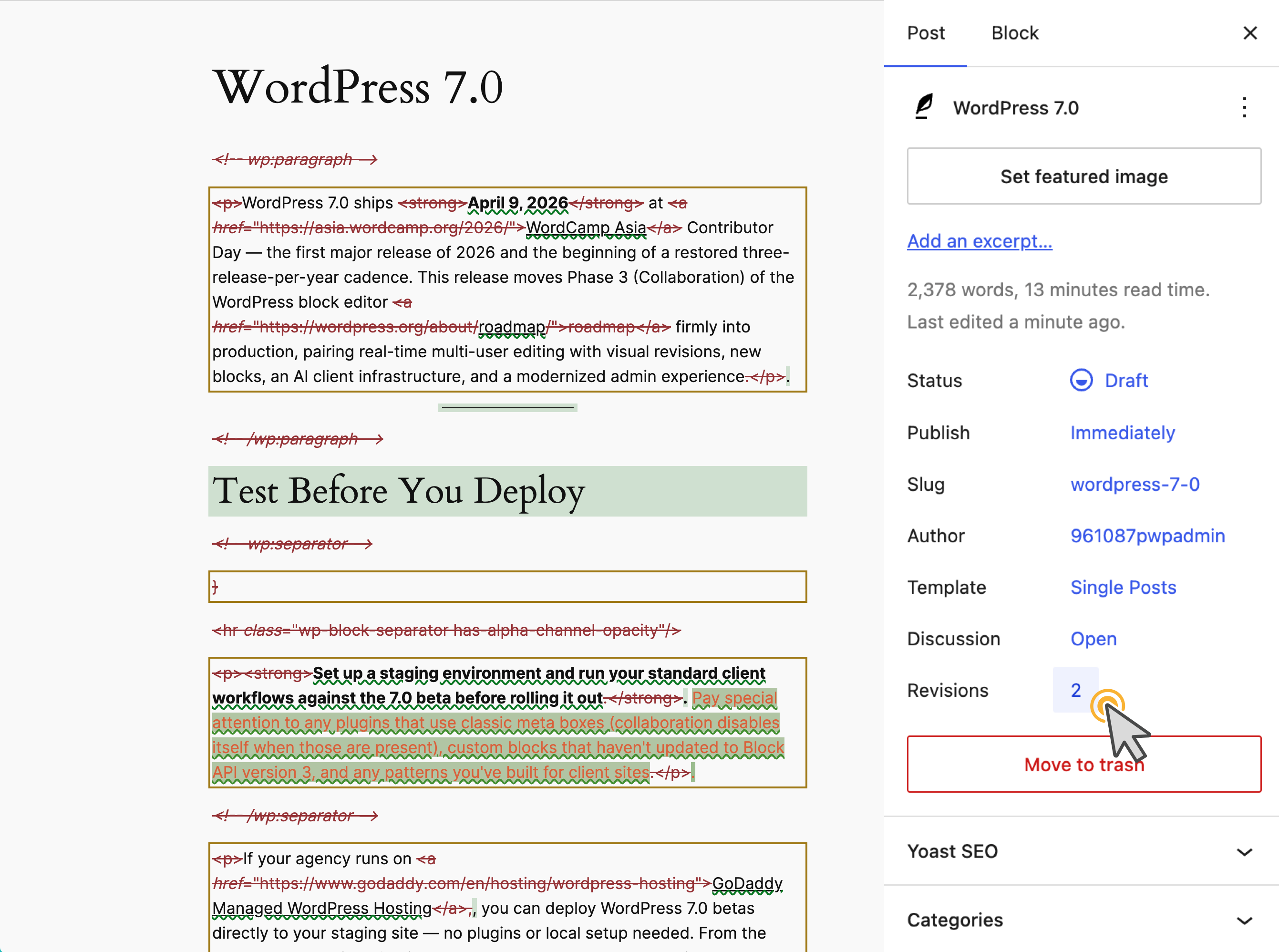
The revisions interface gets a full rethink. Instead of the classic comparison screen, revisions now display inline in the editor with block-level red/green diff highlighting. A sidebar banner flags where on the page changes occurred. The editor enters a distraction-free comparison mode — you can only restore or exit, no accidental edits mid-review. Tracking issue: #74742.
New blocks
WordPress 7.0 adds the largest batch of new core blocks in a single release in some time. The 7.0 roster of design tools documents the full set:
- Accordion (with Accordion Heading, Accordion Item, and Accordion Panel sub-blocks) for collapsible content sections
- Breadcrumbs for hierarchical navigation paths
- Icon with a default set plus an extensibility API for registering custom icon sets
- Math for typeset mathematical expressions
- Playlist for audio/video playlists, with CSS inheritance for theme styling
- Term Query (with Term Template, Term Count, and Term Name sub-blocks) — a query-loop-style block for taxonomy terms
- Post Time to Read — calculates and displays estimated reading time
- Heading as its own first-class block with H1–H6 variations in the inserter and slash command (insert an H3 directly instead of inserting a heading and changing the level)
The Breadcrumbs block renders hierarchical navigation paths based on the current page, post, archive, or template context.
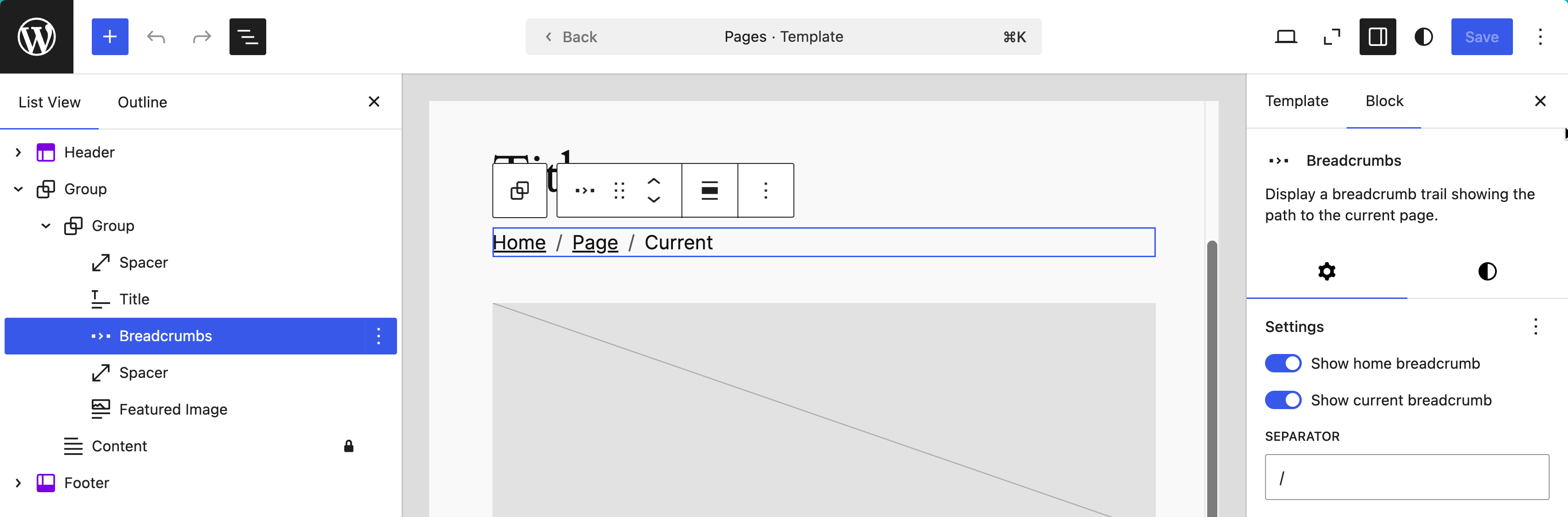
It supports primary category selection for multi-category posts, a filter hook for overriding the breadcrumb array, and customizable separator icons. Default styling is minimal, giving theme authors full design control. The breadcrumb block filters dev note documents two PHP filters — block_core_breadcrumbs_items for modifying trail items and block_core_breadcrumbs_post_type_settings for taxonomy control:
add_filter( 'block_core_breadcrumbs_items', function( $items ) {
    // Replace "Home" label with a custom site name
    $items[0]['label'] = 'My Agency Site';
    return $items;
} );
Icon block: The new Icon block ships with a default set from the wordpress/icons package, plus an extensibility API for registering custom icon sets.
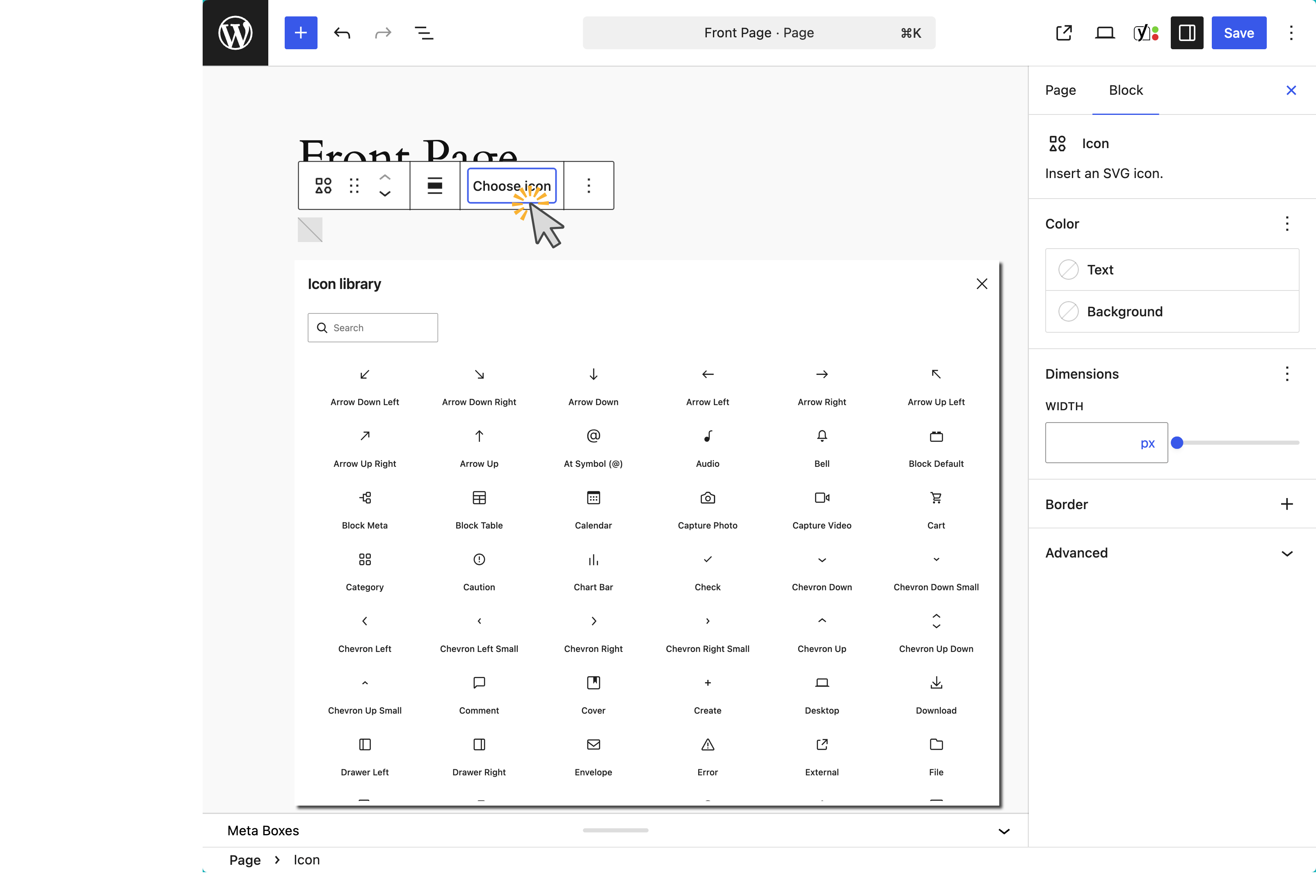
It fills a long-standing gap — previously, adding icons to content required custom HTML blocks or third-party plugins. Tracking issue: #16484.
Verse block: WordPress 7.0 renames the Verse block to Poetry. Existing Verse blocks continue to work; the rename recognizes that the block serves any pre-formatted creative text, not just verse.
Gallery lightbox
The Gallery block now supports a lightbox overlay with an added slideshow option for image-to-image navigation. Create and insert a Gallery, click the link icon, then enable "enlarge on click." Tracking issue: #56310.
Pattern editing changes
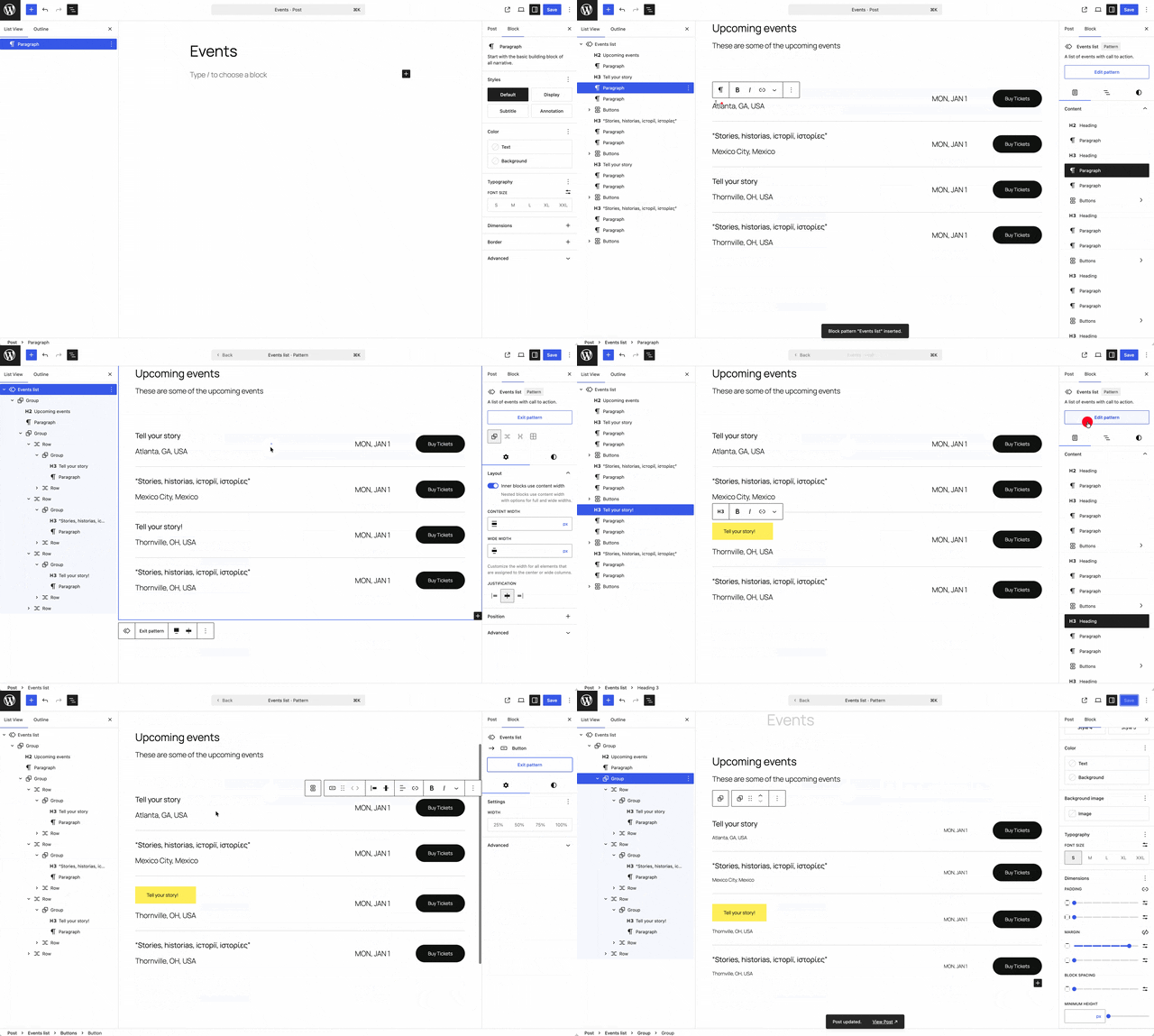
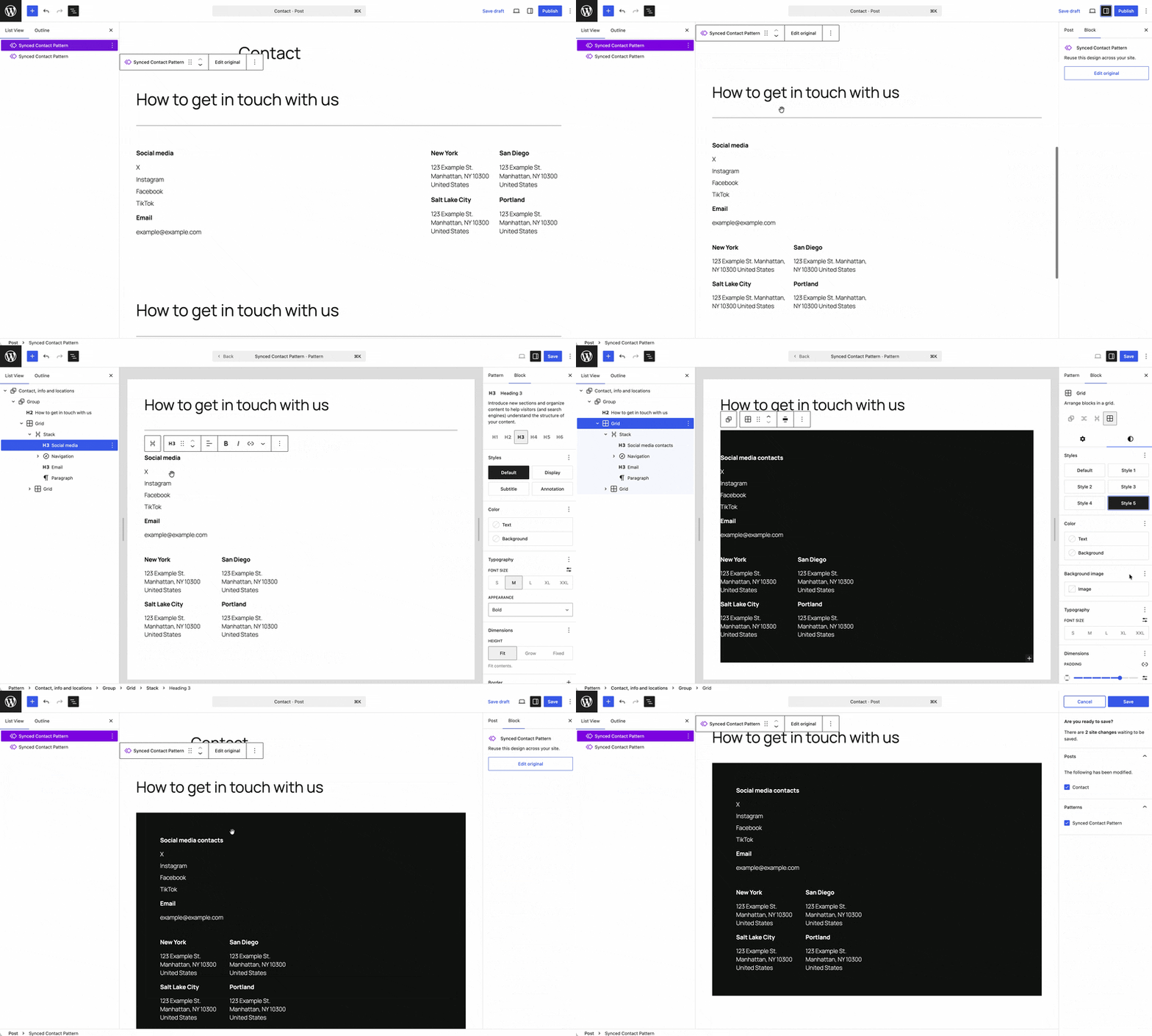
This one requires attention. Unsynced patterns and template parts now default to content-only mode when inserted into the editor. You can edit text and media, but the editor hides the block structure and style controls by default. This prevents accidental layout changes — a common pain point — but it's a behavioral shift from previous versions where users had full block access. However, an "Edit section" button provides access to the full structure when needed.
WordPress 7.0 also applies contentOnly mode more broadly throughout the editor. If a custom block is nested inside a contentOnly pattern, the attributes you want editors to be able to change need "role": "content" set in block.json - otherwise list view hides them and locks them from editing. You can opt unsynced patterns out of contentOnly mode site-wide via the new disableContentOnlyForUnsyncedPatterns setting or the block_editor_settings_all PHP filter. See the Pattern Editing dev note for the full picture.
Unsynced patterns
Synced patterns/template parts
Customizable navigation overlays
The Navigation block's mobile overlay — the hamburger menu — is no longer a locked, unstyled default. In 7.0, overlays work as template parts that you build with blocks and patterns in the Site Editor. Add branding, calls-to-action, search, social icons, or any other blocks directly inside the overlay using the same tools you use for the rest of the site. A new Navigation Overlay Close block lets you place and style the close button wherever you want it.
Overlays use a new navigation-overlay template part area. An overlay selector in the Navigation block's sidebar controls lets you create a new overlay, pick an existing one, or use one bundled by the active theme. Because overlays are template parts, changes apply site-wide — update once, deploy everywhere. The feature is opt-in: without a custom overlay assigned, the Navigation block uses the same default behavior as previous versions.

For agency theme work, this opens up a category of client requests that previously required custom code. A mobile menu with a logo, featured promotion, and styled close button is now a template part edit — not a dev ticket. Themes can ship pre-built overlay template parts and register overlay-specific patterns that appear in the Design tab when editing an overlay. Register the template part in theme.json with "area": "navigation-overlay", create the HTML file in parts/, and optionally pre-assign it in the Navigation block markup with the overlay attribute.
Known limitations to flag for clients: Overlays are full-screen only in this release — the release doesn't support sidebar drawer styles yet (that requires a <dialog> element implementation planned for a future release). Custom overlays don't survive theme switches (#72452). And overlays are scoped to the Navigation block — this isn't a general-purpose popup or modal system. The customizable navigation overlays dev note covers the full implementation including theme bundling instructions and pattern registration.
Responsive editing mode
Viewport-based block visibility lets you show or hide any block by screen size — the control lives under the block toolbar, block inspector sidebar, and command palette.
1:08 PM
In addition, WordPress still renders viewport-hidden blocks in the DOM and then hides them with CSS. Meanwhile, List View also shows an icon next to any block with active visibility rules, so at a glance, you know which ones disappear on which viewports.
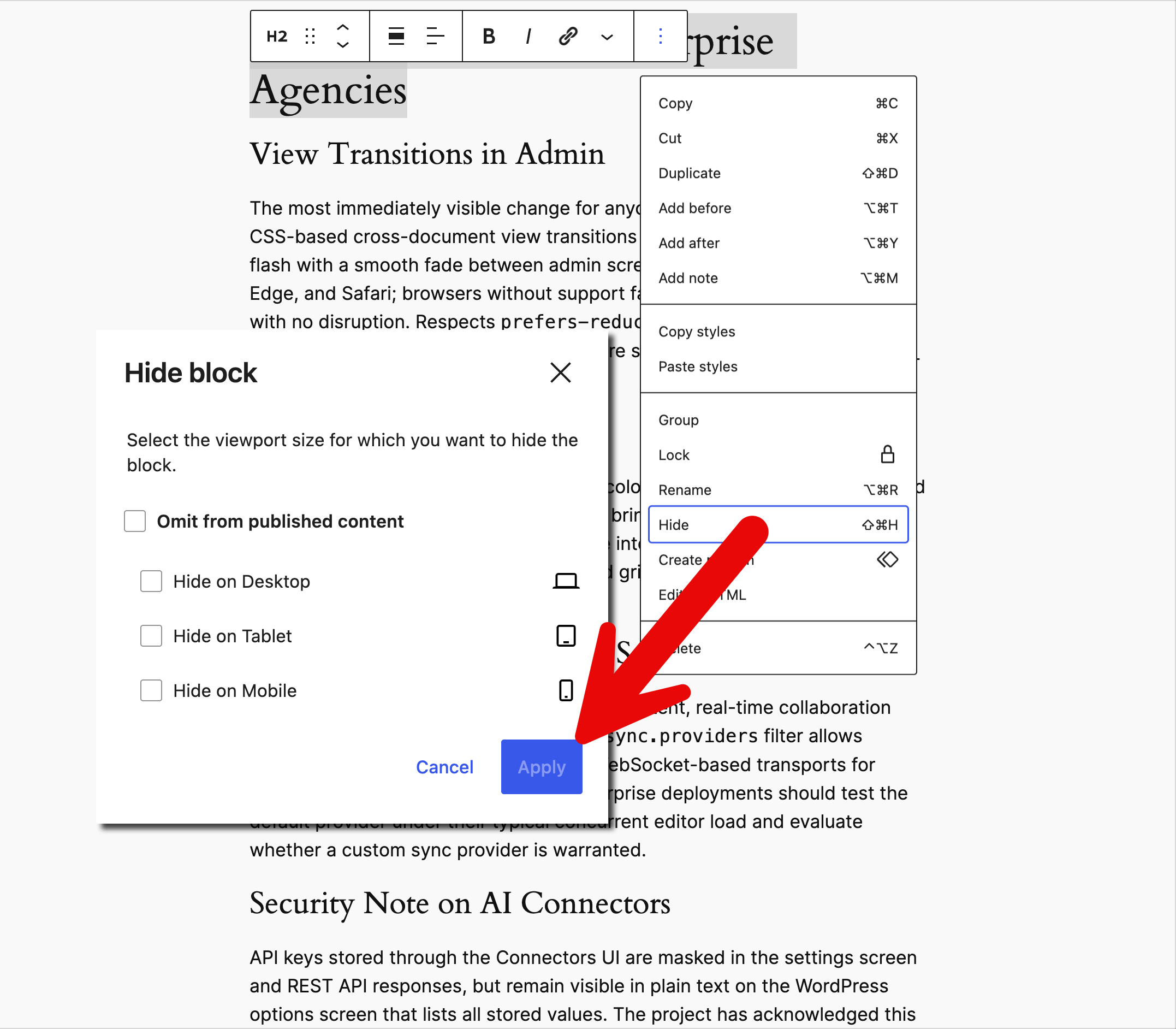
Beyond visibility, 7.0 also introduces the ability to apply different styles for different breakpoints and, in addition, to customize the breakpoint sizes themselves. Overall, both are meaningful additions for agencies building responsive sites without, for instance, ultimately dropping to custom CSS. The Block Visibility dev note covers the implementation.
Other editor improvements
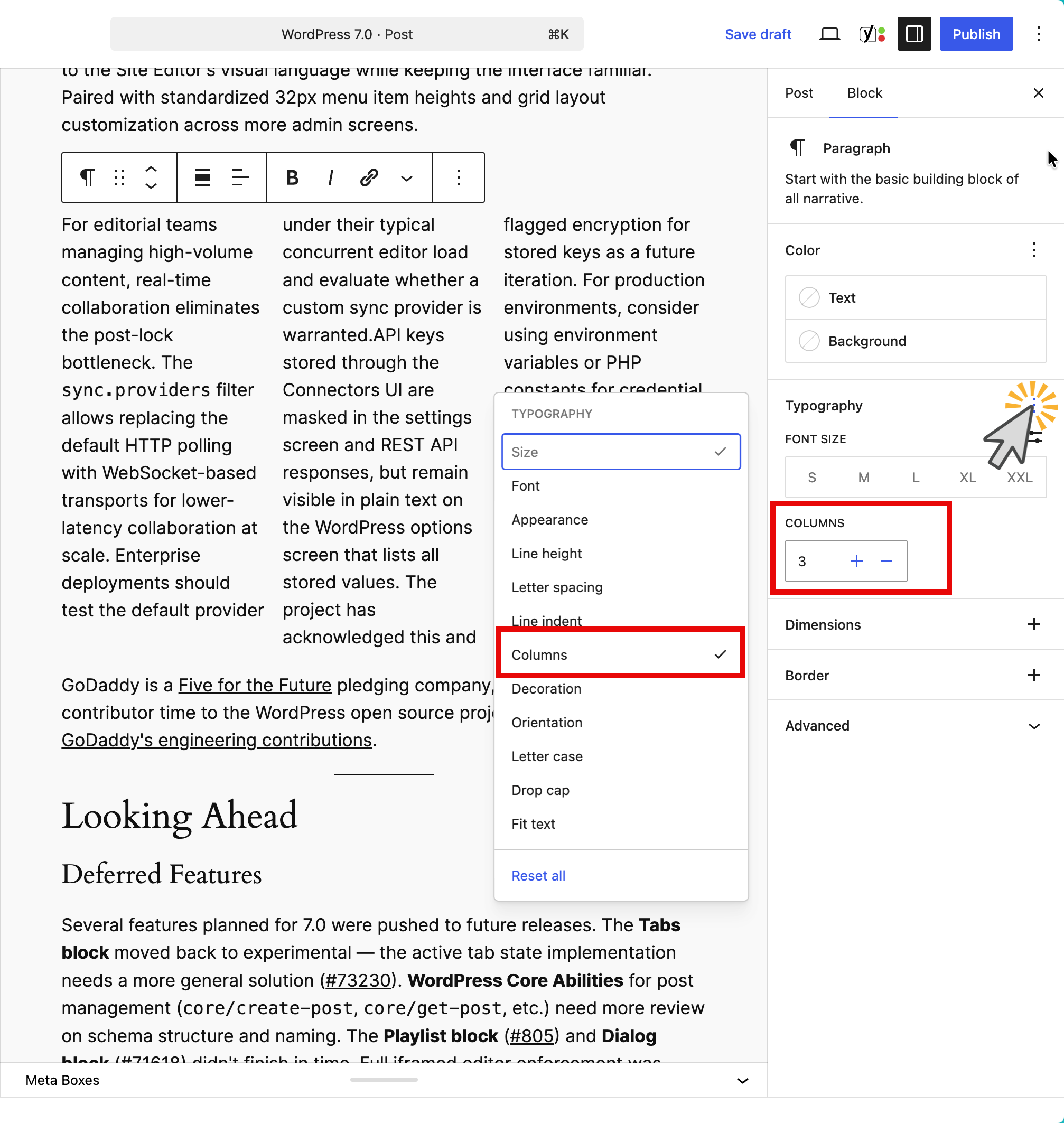
The Paragraph block gains multi-column text support and first-line indent. List View now shows full block titles and actual list item content instead of truncated labels.
A new in-editor image cropper (PR #72414) lets you crop images directly inside the block editor without switching to the media library.
In addition, heading levels (H1–H6) now appear as individual variations in the block inserter and slash command, so you can insert an H3 directly instead of inserting a heading and then changing the level.
What does this update bring to theme authors?
Pseudo-element support in theme.json
You can now define :hover, :focus, :focus-visible, and :active states on the core/button block and its variations directly in theme.json. Previously, interactive states were only available for elements like button and link. This means an "Outline" button variation can have entirely different hover colors than the default button style — all declared in theme.json, no custom CSS needed.
Here's what that looks like for a button variation:
{
  "styles": {
    "blocks": {
      "core/button": {
        "variations": {
          "outline": {
            ":hover": {
              "color": { "background": "#1e40af", "text": "#ffffff" }
            }
          }
        }
      }
    }
  }
}
This is a theme.json-only API for now — no Global Styles UI for these states ships in 7.0. UI work is tracked at #38277. The pseudo-element support dev note has the full schema.
Custom CSS per block
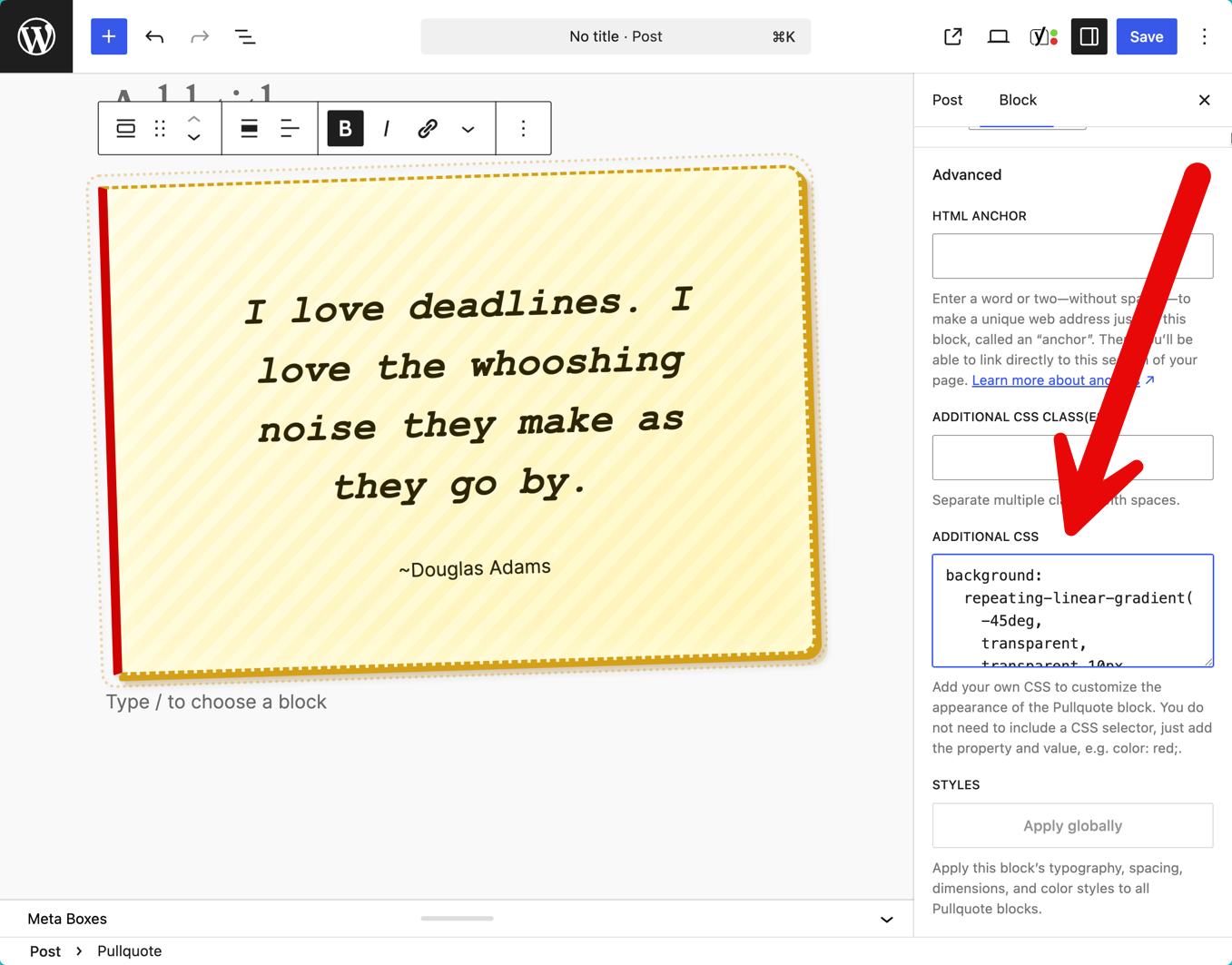
Individual block instances can now receive custom CSS via Advanced → Additional CSS in the block sidebar. WordPress adds a .has-custom-css class automatically in both the editor and frontend. he CSS applies only to that single block instance. It won't affect other blocks of the same type. Useful for one-off client requests without polluting global styles.
Responsive grid block
The Grid block now allows Minimum column width and Columns controls to work simultaneously — the previous either/or toggle between Auto and Manual modes no longer exists. This gives theme authors finer control over responsive grid behavior without custom CSS overrides.
Dimension presets and new block supports
7.0 introduces preset dimension values in theme.json for block supports including width, height, and min-height. Define a value once and reuse it across blocks — no more manually re-entering the same value in every block where you need it. The release also adds typography text indent support in paragraphs, presets support across multiple block supports, and dimensions support for blocks that previously lacked it. The Dimensions Support Enhancements dev note covers the full schema.
Other theme-relevant changes
The new Font Library page under Appearance centralizes typography management for block, hybrid, and classic themes — manage, upload, and install fonts from a single dedicated screen instead of scattered controls. Image blocks gain aspect ratio controls at wide and full alignment. Width and height block supports add new dimension tools. The Heading block is now its own first-class block with H1–H6 variations.
What does this update bring to plugin authors?
Interactivity API changes
Two changes to know about. The new watch() function in @wordpress/interactivity subscribes to changes in any signal accessed inside a callback and re-runs the callback whenever those signals change — useful for logging, analytics, and cross-store synchronization. There's also a corresponding data-wp-watch directive for DOM-lifecycle reactions. The state.url value is now populated server-side during directive processing and remains unchanged until the first client-side navigation, which makes reliable client-side navigation tracking possible from the first page load. The Interactivity API dev note has implementation details.
The combination is particularly useful for analytics — tracking virtual page views on sites using client-side navigation:
import { store, watch } from '@wordpress/interactivity';
const { state } = store( 'core/router' );

watch( () => {
    sendAnalyticsPageView( state.url );
} );
Block bindings: Pattern Overrides for custom blocks
Pattern Overrides now work beyond the hardcoded list of core blocks. Any block attribute that opts into Block Bindings via the block_bindings_supported_attributes filter now also supports Pattern Overrides — including custom blocks. As a result, this is the architectural shift that makes Pattern Overrides genuinely useful for agency work: build a custom CTA block, opt its heading attribute into bindings, and editors can override it per pattern instance. Attribute values appear in the rendered markup for dynamic and static blocks; for static blocks with attributes too complex for the HTML API to process, use a render_callback() to ensure bound values render. See the Pattern Overrides dev note.
List View block support
Block developers can now add a "listView": true block supports declaration to add a List View tab to the block inspector. This gives editors a dedicated view for editing and customizing the block's contents — especially useful for complex container blocks with deep nesting.
Iframed editor: What actually changed
The post editor now iframes when all Block API blocks inserted in the post are using version 3 or higher. Iif any inserted block is on a lower API version, WordPress removes the iframe (PR #75187). Notably, this is a more nuanced policy than the originally proposed "iframe everything" approach — it gives plugin authors a soft landing while still incentivizing the upgrade. Start moving your blocks to API version 3 now — the migration guide is available. See the iframed editor dev note.
PHP-only block registration
Blocks can now be registered entirely in PHP with full metadata support passed to the client — no block.json JavaScript build step required. Declare 'supports' => array( 'autoRegister' => true ) alongside a render callback, and the block is exposed to the client side via a JavaScript global. PHP-registered attributes are editable in the editor, and inspector controls (including DataForm-powered ones) are auto-generated from the registered attribute schema.
For agency teams where the PHP developers outnumber the JS-build-toolchain-comfortable ones, this is a practical shift: your back-end dev can now build a simple client-specific block (office hours, custom post type card, location details) without touching Node, webpack, or a build/ directory — the kind of block you'd previously solve with a shortcode because the block scaffolding overhead wasn't worth it for a single client. The PHP-only block registration dev note has the full pattern.
New plugin list filter
A new plugins_list_status_text filter in get_views() allows custom filtering on the Plugins admin screen. Custom statuses added via plugins_list now appear as tabs, and the tab label can be customized through the new hook — useful for plugins that manage their own status indicators.
What does this update bring to developers?
WP AI Client and Connectors
The WP AI Client ships a provider-agnostic AI interface in core. The PHP function wp_ai_client_prompt() supports method chaining for system instructions, file attachments, model preferences with fallbacks, structured JSON responses, and text generation. The WP_AI_Client_Prompt_Builder class handles the underlying request construction:
$response = wp_ai_client_prompt( 'Summarize this post for social media.' )
    ->using_model_preference( 'claude-sonnet-4-5', 'gemini-3-pro-preview' )
    ->generate_text();
using_model_preference() takes models in priority order — pair it with feature detection to match capabilities against available models, which lowers cost and speeds up processing. A JavaScript counterpart via @wordpress/abilities mirrors the server-side API, and the wordpress/wp-ai-client package handles the transition automatically. See Introducing the AI Client in WordPress 7.0.
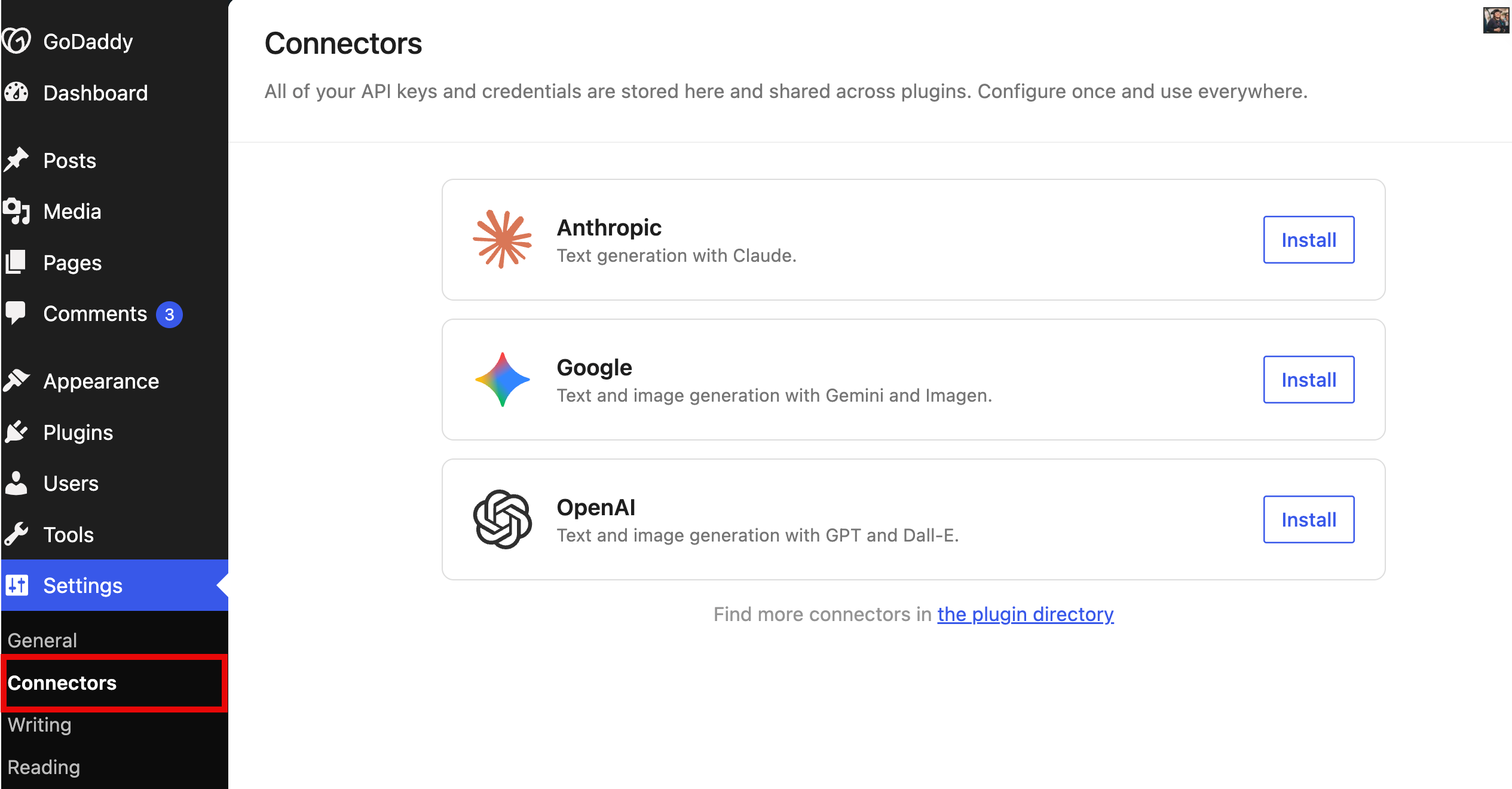
Connectors UI at Settings > Connectors provides a centralized dashboard for managing AI provider credentials. The Connectors UI masks stored API keys in the settings screen and REST API responses, but the WordPress options screen still shows them in plain text. Provider plugins for OpenAI, Anthropic, and Google are available on WordPress.org, with community providers for Grok and OpenRouter already appearing.
The three featured connectors — Anthropic, Google, and OpenAI — are registered in core with hardcoded defaults. You don't need to install a plugin just to see the Connectors screen. The associated provider plugins (ai-provider-for-anthropic, etc.) supply the actual AI client implementation that handles API communication. Install the provider plugin, add your key, and the connector card updates automatically.
What it does not do: The WP AI Client does not ship providers, auto-enable API calls, or add AI buttons to the editor. It provides infrastructure. No data is sent to external services without explicit code requesting it.
If you're building an AI provider plugin that registers with the WP AI Client's default registry, you get a connector for free — the Connectors API auto-discovers registered providers and creates the admin card with the correct name, description, logo, and authentication config. No separate registration code needed. For providers that don't need credentials (local models like Ollama, for example), the API supports a none authentication method alongside api_key.
Agency context: If you're building AI-powered features for client sites, this means you can code against a single API and let site admins choose their provider. No more vendor-locked AI integrations.
Security note on AI Connectors
API keys stored through the Connectors UI are masked in the settings screen and REST API responses, but remain visible in plain text on the WordPress options screen that lists all stored values. The project has acknowledged this and flagged encryption as a future iteration. For production environments, load credentials through environment variables or PHP constants instead. The system checks for keys in priority order: environment variable first (e.g., ANTHROPIC_API_KEY), then PHP constant (define( 'ANTHROPIC_API_KEY', 'sk-...' )), then the database. Environment variables win, so setting one bypasses the database entirely. Encryption for database-stored keys is tracked at Trac #64789.
Connectors API for plugin developers
Three public functions let plugins query the connector registry after init: wp_is_connector_registered() checks whether a provider is available, wp_get_connector() retrieves a single connector's metadata, and wp_get_connectors() returns the full registry. Use these to conditionally enable AI features based on which providers a site has configured.
The wp_connectors_init action fires after all built-in and auto-discovered connectors are registered — that's your hook for overriding metadata or adding custom connectors. Because the registry rejects duplicate IDs, overrides require an unregister → modify → re-register sequence. The Connectors API dev note documents the full registry API and override pattern.
Abilities API and MCP Adapter
The Client-Side Abilities API (@wordpress/abilities) ships as a stable package for discovering and executing WordPress capabilities, with new and hybrid abilities, a command palette UI, and filter/query functionality. Enqueue @wordpress/core-abilities to automatically fetch and register server-side abilities via the REST API, or enqueue only @wordpress/abilities for client-side-only work. Abilities are organized into customizable categories, support meta data annotation, and expose useSelect via core/abilities for reactive queries in React components. See the Client-Side Abilities API dev note.
The MCP Adapter bridges these abilities to the Model Context Protocol, letting AI coding assistants like Claude Code, Cursor, and VS Code interact with WordPress sites during development. The MCP Adapter automatically exposes abilities marked with meta.mcp.public = true
DataViews and DataForm
DataViews and DataForms add a new Activity layout, a new Details layout, improved modal appearance, and the ability to register third-party types in the Field API.
12:35 PM
QuickEdit in DataViews also brings inline editing to list views. Overall, the DataViews/DataForm dev note documents 166 contributions by 35 authors across this cycle, including the format property for number/date display, expanded validation via isValid, new combobox and adaptiveSelect edit controls, and the groupBy object finally replacing groupByField.
More secure user registration
WordPress 7.0 removes the Administrator and Editor roles from the new user default role selector under Settings > General. Site Health also alerts you if one of those roles was selected before updating. Additionally, a new default_role_dropdown_excluded_roles filter lets you customize which roles are excluded — useful, for example, if your agency has client setups that legitimately need to default to a higher-privilege role.
Title attributes removed from author link functions
If your themes use get_the_author_link() or the_author_link(), the "Visit Author's website" title tooltip is now removable via a new $use_title_attr parameter (default behavior unchanged). Similarly, the "Posts by Author" title attribute is removed by default from get_the_author_posts_link(), the_author_posts_link(), and wp_list_authors() — however, the the_author_posts_link filter still receives the title text, so you can use it to replace the link text if needed. See the title attribute removal dev note.
Other developer changes
- Block Hooks logic moved from individual post type filters to the REST controller, with new support for content-like Custom Post Types.
- CodeMirror updated to v5, along with CSSLint, HTMLHint, and JSONLint. Esprima has been replaced with Espree for ES6 support.
- External library updates: backbone.js to 1.6.1, Requests to 2.0.17, PHPMailer to 7.0.2 (including a Sender address bug fix).
- New
wp_get_image_alttext()function imports image alt text from IPTC metadata. - Site Editor routing foundation: a new
@wordpress/bootpackage and a refactored@wordpress/scriptsthat builds from directories and reduces Webpack dependence — early infrastructure for plugins to build custom site-editor pages.
PHP version requirement
WordPress 7.0 raises the minimum PHP version to 7.4, up from 7.2.x. Sites on PHP 7.2 or 7.3 will be unable to update. Recommended: PHP 8.2 or later. Flag this for any clients running older hosting environments — they'll need an upgrade before they can take 7.0.
What does this update bring to site admins and enterprise agencies?
View transitions in admin
The most immediately visible change for anyone who uses wp-admin daily. CSS-based cross-document view transitions replace the full-page reload flash with a smooth fade between admin screens. Supported in Chrome, Edge, and Safari; browsers without support fall back to standard navigation with no disruption. Respects prefers-reduced-motion for accessibility. Admin-only — frontend view transitions are scoped for a future release (Trac #64471).
"Modern" admin color scheme
WordPress 7.0 introduces a new default color scheme called Modern, applied across admin headers, the Customizer, the color scheme picker, script loader, various user functions, and multisite signup. It's a refreshed palette with higher contrast and updated typography that pulls wp-admin closer to the Site Editor's visual language while keeping the interface familiar.
Command Palette shortcut in the admin bar
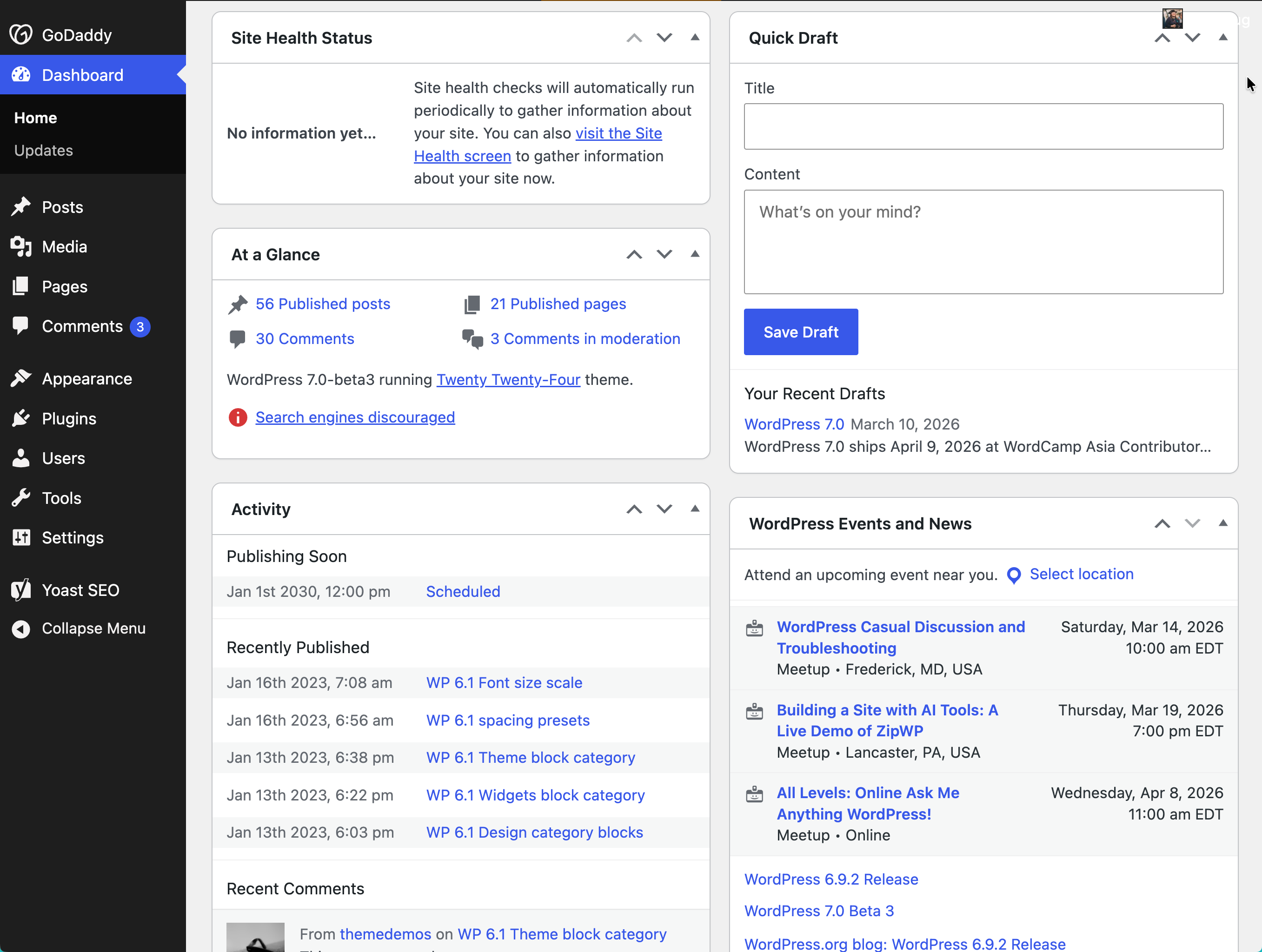
WordPress 7.0 adds a ⌘K / Ctrl+K icon for logged-in users in the upper admin bar that unfurls the command palette on click. The command palette previously lived inside the editor; now it's accessible from anywhere in wp-admin. For agencies managing multiple client sites, this is the kind of quietly useful improvement that compounds — keyboard-driven navigation across the dashboard, not just within an editing session.
Font Library page
A dedicated Font Library page under Appearance centralizes font management for block, hybrid, and classic themes. Upload, install, and manage fonts in one place instead of navigating between scattered controls — a small change that meaningfully simplifies typography handoffs between designers and editors.
GoDaddy contributors to WordPress 7.0
GoDaddy engineers contributed to WordPress 7.0 across core, the block editor, and related packages. Four sponsored contributors earned props in this release:
- George Mamadashvili (@mamaduka)
- Joe Dolson (@joedolson)
- Drew Jaynes (@DrewAPicture)
- Kira Schroder (@kirasong)
- Scott Kingsley Clark (@sc0ttkclark)
- Courtney Robertson (@courane01)
GoDaddy is a Five for the Future pledging company, committing sponsored contributor time to the WordPress open source project. Learn more about GoDaddy's engineering contributions.
Looking beyond WordPress 7.0
Deferred features
Real-time collaborative editing was removed from WordPress 7.0 on May 8. Matt cited concerns around surface area, race conditions, server load, memory efficiency, and recurring bugs surfaced through fuzz testing. First, the feature isn't cancelled — it remains, for now, an active project, currently testable through the Gutenberg plugin. However, the team ultimately determined the current approach wasn't robust enough to ship in core at this time. Post locking remains the standard behavior in 7.0, and the existing wp_check_post_lock() APIs work the same way they always have.
For agencies that were planning around real-time editing for editorial workflows, this is a real schedule shift. For now, plan around post locking for the foreseeable future; expect a broader testing program before RTC re-emerges in a future release. The infrastructure work already shipped — including the custom sync provider architecture — gives hosts and enterprise teams a head start on the eventual implementation.
What's next
WordPress 7.1 targets August 19, 2026, aligned with WordCamp US. First, expect continued iteration on collaboration tools — with real-time editing, in particular, as a likely headline candidate once the architecture stabilizes — along with the deferred post management abilities and, in addition, further DataViews extensibility. Meanwhile, the Connectors API is also scoped to grow beyond AI providers. For example, future releases plan to support additional authentication methods, then lift the ai_provider type restriction on the admin screen, and ultimately ship a client-side JavaScript registration API for custom connector UIs. Finally, the three-release cadence continues through 7.2 in December, timed as always to State of the Word.